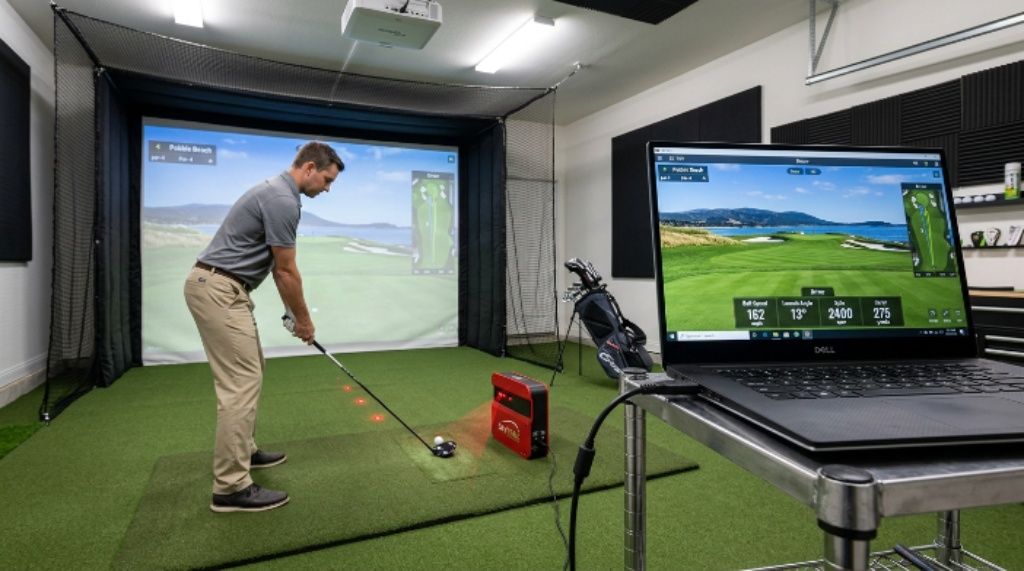

Setting up a golf simulator at home is an exciting project. However, one of the most overlooked steps is making sure your laptop can actually run the software. Many golfers invest in premium launch monitors and then discover their computer cannot keep up. The result is lag, crashes, or a completely unusable experience. This guide helps you avoid that problem entirely by walking you through exactly what to look for in a laptop before you buy or upgrade.
Why Your Laptop Choice Matters More Than You Think
Golf simulator software is not like a basic spreadsheet or a web browser. It runs complex 3D graphics, processes real-time ball flight data, and communicates with external hardware simultaneously. All of this demands serious computing power.
A laptop that cannot meet the minimum specifications will struggle from day one. Additionally, as software updates roll out, the requirements often increase. Therefore, buying a laptop that just barely meets today’s minimum specs is a short-term solution at best. Aiming for the recommended specs — or higher — gives you room to grow.
Start with the Software, Not the Hardware
Most golfers make the mistake of buying a laptop first and checking compatibility later. The smarter approach is to start with the software you plan to use and work backward from there.
Different platforms have very different demands. A casual sim game designed for home use will ask much less of your hardware than a professional-grade system. Know which software you are committing to before you spend a single dollar on hardware.
Popular golf simulation platforms each publish their own system requirements. Reading those documents carefully is the single most important step in this entire process.
Understanding the Core Hardware Components
Before diving into specific software, it helps to understand which hardware components matter most for golf simulation. Each one plays a different role in how smoothly your experience runs.
The Processor
The CPU is the brain of your laptop. Golf simulator software relies on the processor to handle physics calculations, sensor data, and game logic all at once. For most modern platforms, you want at least an Intel Core i5 or AMD Ryzen 5 from a recent generation. However, an i7 or Ryzen 7 will give you noticeably better performance, especially during busy in-game moments.
The Graphics Card
This component renders the golf course visuals. A dedicated GPU — rather than integrated graphics — makes a significant difference in frame rate and visual quality. Look for a laptop with at least an NVIDIA GeForce GTX 1650 or its AMD equivalent. Higher-end platforms may require even more GPU power.
RAM
Random access memory determines how many tasks your laptop can handle at once. For golf simulation, 8GB of RAM is typically the minimum. However, 16GB is the far more comfortable choice. It prevents slowdowns when the simulator is running alongside other background processes.
Storage
Golf simulation software and its course libraries can take up a surprising amount of space. A solid-state drive, or SSD, is strongly preferred over a traditional hard drive. SSDs load courses faster and reduce the chance of stuttering during gameplay. Aim for at least 256GB, though 512GB gives you much more flexibility.
Display and Connectivity
Your laptop screen matters less here because most simulator setups use an external projector or monitor. However, the ports on your laptop matter a great deal. Make sure you have HDMI, USB-A, and ideally USB-C ports available. Some launch monitors connect via USB, Bluetooth, or Wi-Fi, so check the connection method your device uses.
Matching Your Laptop to TrackMan
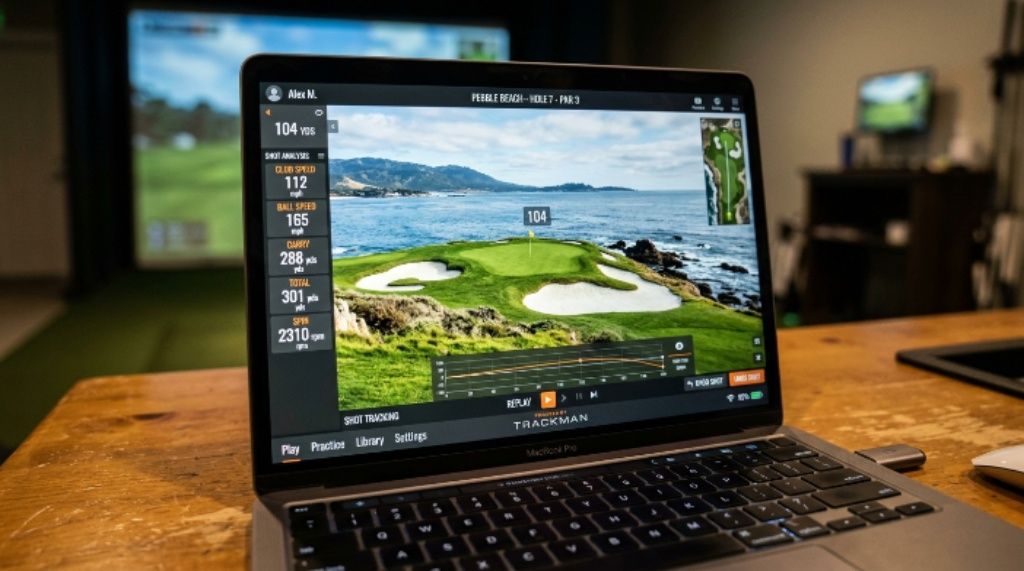
TrackMan is one of the most respected names in golf simulation and launch monitor technology. It is used by tour professionals and serious amateurs alike. Because of its precision, the TrackMan requirements for software are higher than many other platforms.
On the PC side, TrackMan recommends a modern quad-core processor, a dedicated graphics card, and at least 8GB of RAM. Windows 10 or Windows 11 is required — Mac support is limited. A stable internet connection is also necessary for software activation and course updates.
If you plan to use the full TrackMan simulation experience, lean toward a high-performance gaming laptop rather than a general-purpose business machine. The difference in real-world performance is substantial.
Matching Your Laptop to SkyTrak
SkyTrak is a popular choice for home golfers who want a realistic simulation experience at a more accessible price point. The SkyTrak PC specs are less demanding than TrackMan, which makes it easier to find a compatible laptop without spending a fortune.
SkyTrak’s software works with Windows 10 or later. It requires a reasonably modern processor, at least 4GB of RAM at minimum (though 8GB is recommended), and a graphics card that supports DirectX 11. The software also communicates with the launch monitor device over Wi-Fi, so a laptop with a reliable wireless adapter is important.
Because the SkyTrak PC specs sit in a more moderate range, many mid-tier laptops from the past few years will qualify. Still, choosing a machine with headroom above the minimum will result in a much smoother experience.
Other Popular Platforms to Consider
Beyond TrackMan and SkyTrak, several other simulation platforms are worth knowing about.
E6 Connect is widely used and works with multiple launch monitors. It requires a dedicated GPU and at least 8GB of RAM, with 16GB recommended for higher course detail settings.
The Golf Club 2019, now integrated into various simulator setups, runs well on mid-range hardware. It is a good starting point for golfers who want a polished experience without the most demanding hardware requirements.
FSX Play and Creative Golf 3D are lighter options that run on less powerful machines. Therefore, if your laptop is on the older side, these may be worth exploring while you save for an upgrade.
Tips for Getting the Best Performance from Your Laptop
Even with a compatible laptop, a few habits will help you get the most out of your simulator.
- Keep your graphics drivers updated at all times
- Close unnecessary background applications before launching the simulator
- Use a wired connection for internet when possible to reduce latency
- Make sure your laptop is plugged in during use, as battery-saving modes reduce performance
- Set your power plan to “High Performance” in your system settings
Additionally, keeping your laptop clean and well-ventilated prevents thermal throttling. When a laptop overheats, it slows itself down to cool off. This can cause frame drops right in the middle of a swing, which is the last thing you want.
Should You Buy a New Laptop or Upgrade Your Existing One?
If your current laptop is more than five years old, upgrading the RAM or storage may help, but it often will not be enough. Older processors and integrated graphics simply cannot handle modern simulation software well, no matter how much RAM you add.
However, if your laptop is two or three years old and already has a dedicated GPU, a RAM upgrade to 16GB might be all you need. Check your current specs first by searching “System Information” on Windows, then compare against the requirements of your chosen software.
If buying new, a gaming laptop in the $700 to $1,200 range will comfortably meet the requirements of almost every major golf simulation platform available today.
Conclusion
Matching your laptop to golf simulator software does not have to be complicated. The key is to start with the software requirements and then find hardware that meets or exceeds them. Understanding what your processor, GPU, RAM, and storage need to do helps you make a confident purchase. Platforms vary widely in their demands — the TrackMan requirements sit at the higher end, while the SkyTrak PC specs are more forgiving for budget-conscious buyers. Whichever platform you choose, a laptop with a dedicated graphics card, at least 16GB of RAM, and an SSD will serve you well for years to come. Take the time to do this research upfront, and your simulator will reward you with a smooth, immersive experience every time you step up to the mat.
Frequently Asked Questions
Can I run golf simulator software on a Mac?
Most major golf simulation platforms are designed primarily for Windows. Some, like SkyTrak, offer iOS app compatibility for iPad. However, full PC simulation features are usually Windows-only. Check your specific software’s compatibility page before purchasing a Mac for this purpose.
Does integrated graphics work for golf simulators?
Integrated graphics can run some lighter simulation software at reduced settings. However, for a smooth, visually rich experience on platforms like TrackMan or E6 Connect, a dedicated GPU is strongly recommended. Integrated graphics often struggle with frame rates during detailed course rendering.
How much storage space does golf simulator software typically need?
It varies by platform and the number of courses installed. Base installations can range from 10GB to over 50GB. With full course libraries, some setups require 100GB or more. An SSD with at least 512GB is a practical choice for most users.
Is Wi-Fi speed important for golf simulation?
Wi-Fi speed matters mostly for software downloads, course updates, and online play. The connection between your laptop and the launch monitor itself is usually a local Wi-Fi link, not internet-dependent. A router that supports the 5GHz band will reduce interference and improve that local connection.
Can I use a laptop instead of a desktop for a golf simulator?
Yes, absolutely. Many golfers prefer laptops for flexibility, especially in multi-use spaces. Just make sure the laptop meets the software requirements and that you plug it in during use. A plugged-in laptop performs significantly better than one running on battery power alone.
Related Topics:
How to Find a Quality Skateboard on a Budget
Golf Accessories in Miami – Essentials for Hot Weather Play